Abishek Muthian
Access Ring
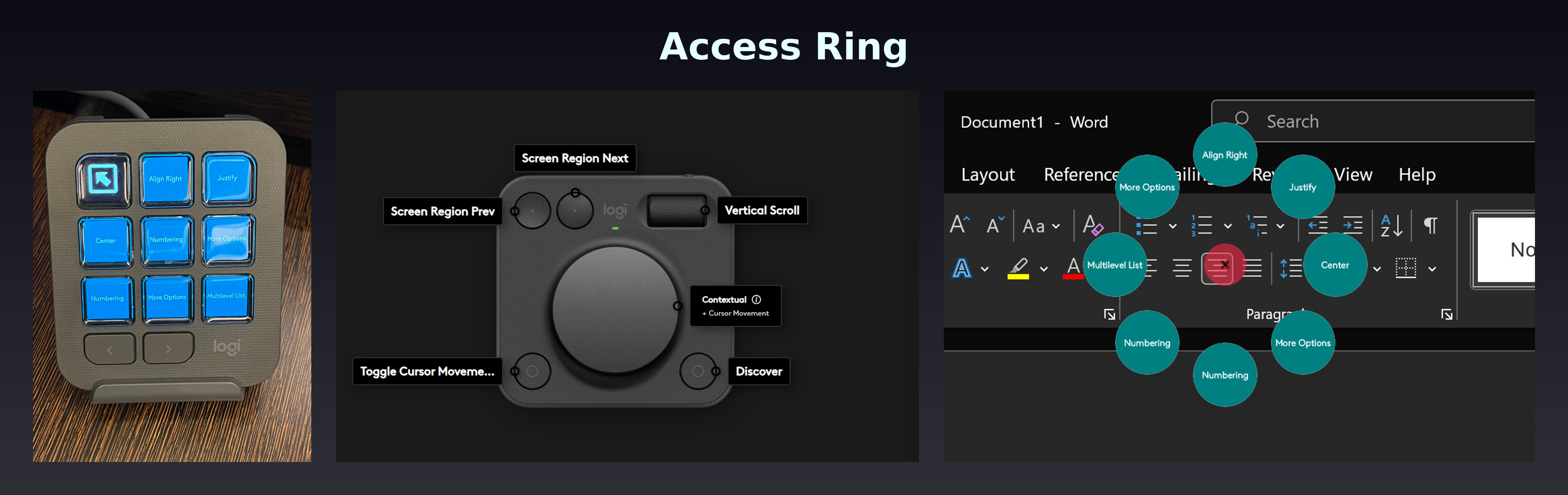
Discover and invoke UI elements near your cursor, without precise mouse targeting.
A Logi Actions SDK plugin for MX Creative Console and Actions Ring. Buttons, checkboxes, menus, tabs, dropdowns: tap to interact with whatever is nearby.
The problem with precise clicking
Every toolbar button, checkbox, and menu item demands pixel-perfect mouse aim. For everyone, it is slow. For people living with conditions that affect motor function, such as Parkinson's disease, Alzheimer's, essential tremor, multiple sclerosis, muscular dystrophy, ALS, repetitive strain injury, spinal injury, arthritis etc. precise mouse targeting can range from difficult to impossible.
Small targets in dense toolbars. Ribbon buttons that shift between screen sizes. Dropdown menus that vanish if you overshoot. Context menus nested three levels deep. Every one of these is a frustration multiplied.
Access Ring replaces precise targeting with a simple question: What is near my cursor right now?
How it works
- Position your cursor near the area of interest
- Tap Discover on any connected device
- See nearby elements appear on your device display
- Tap to invoke and the plugin activates it for you
Access Ring scans a 300-pixel radius around your cursor using Windows UI Automation, finds interactive elements (buttons, checkboxes, menu items, tabs, toggles, and more) and presents up to 8 of them sorted by proximity. Enabled elements appear first.
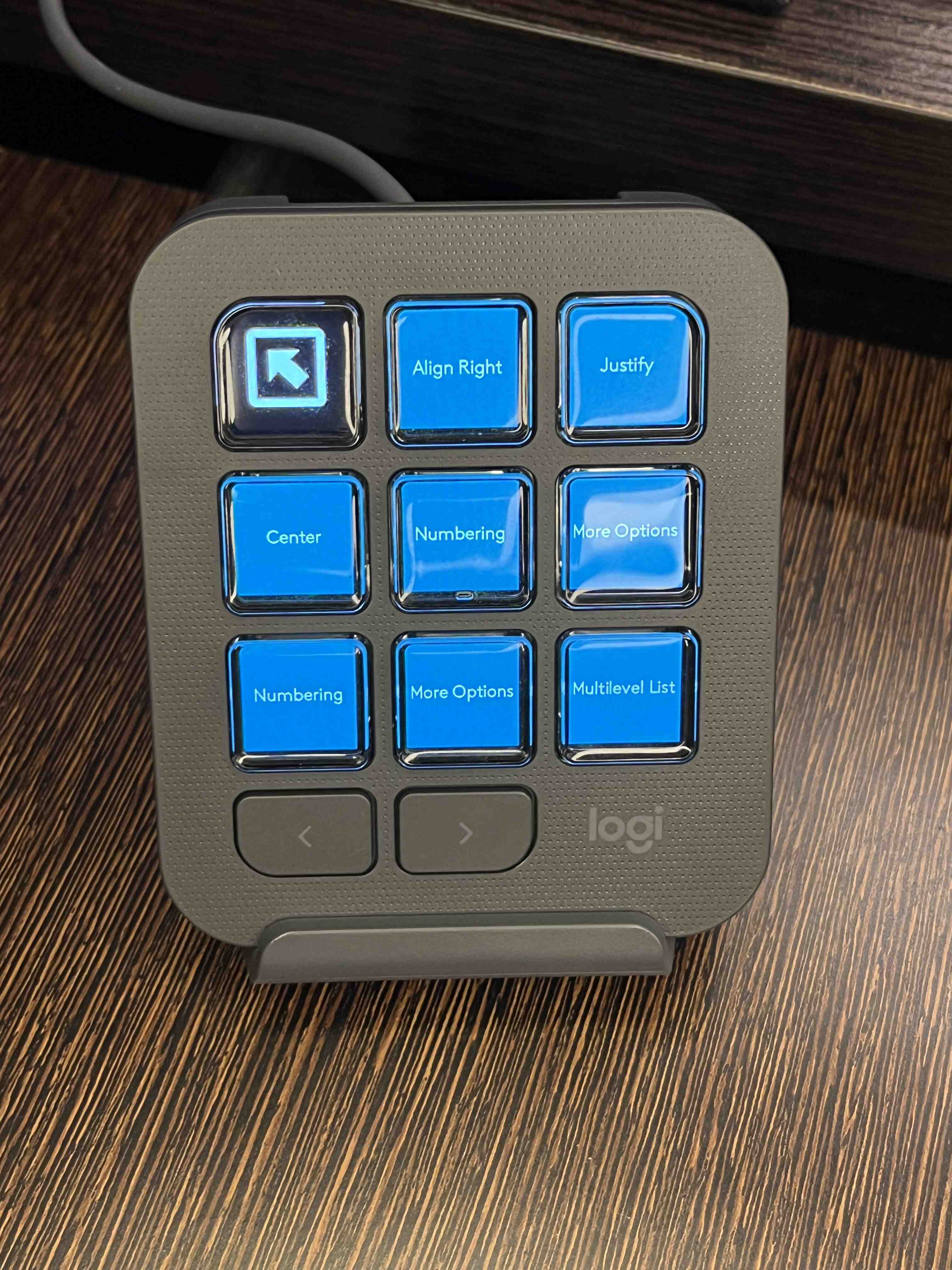
MX Creative Console Keypad: Live element display
The Keypad LCD becomes a live view of interactive elements near your cursor. No configuration required. No mode switching. Open the Access Ring folder and it stays open, a persistent companion that always reflects the current state.
Idle state: A single teal "Discover" button waits for your tap.
Scanning: Tap Discover and the display briefly shows "Scanning..." in violet.
Results: LCD buttons auto-populate with the names of discovered elements. Tap any button to invoke that element. The plugin handles the rest.
Zero configuration
Open the Access Ring folder on your Keypad. That is it. The folder subscribes to discovery results from every source. Whether you trigger from the Dialpad, the Actions Ring, or the Ctrl+Alt+Shift+D hotkey (assigned to the mouse button), the Keypad display refreshes automatically.
Persistent display
The folder stays open after invocation. Discover again and it updates in place. There is no need to reopen or navigate back. The Keypad is always ready for the next interaction.
MX Creative Console Dialpad: Full mouse-free control
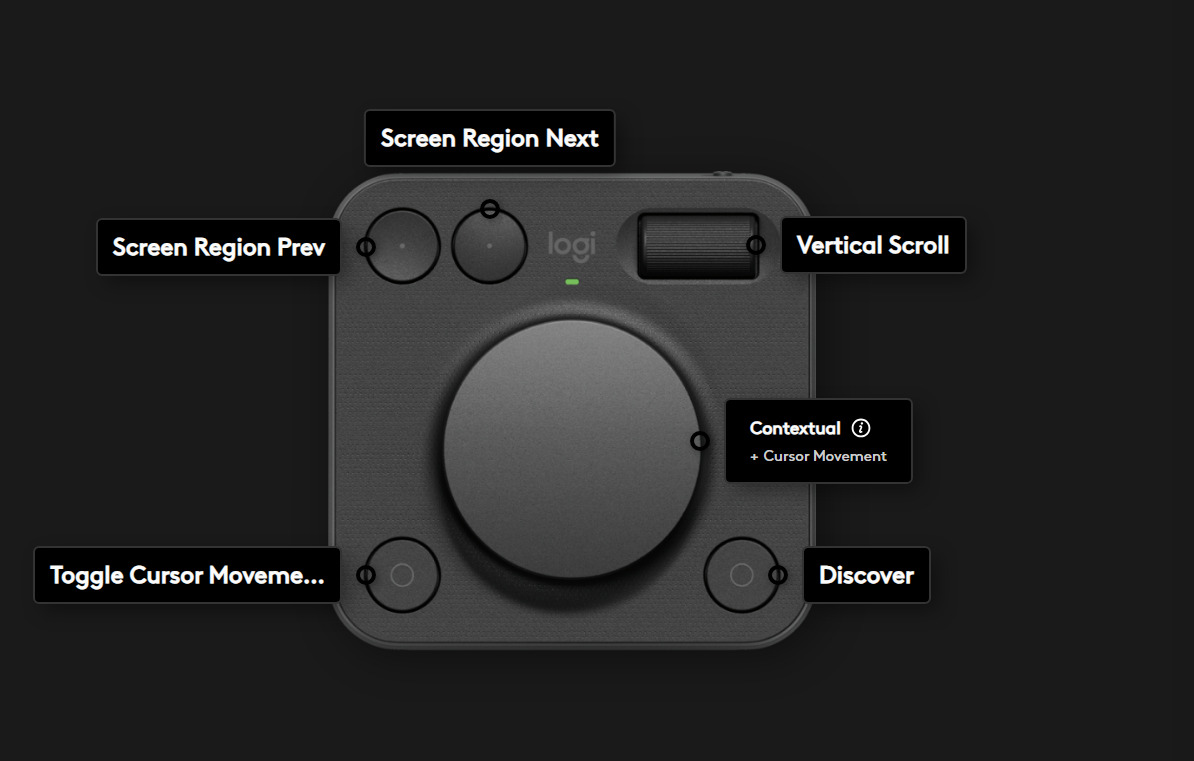
The Dialpad transforms the Creative Console into a complete accessibility controller. No mouse required.
Screen region navigation
Two buttons cycle through a 3x3 grid of your screen. Each tap jumps the cursor to the center of the next region, coarse positioning that gets you close in one or two taps.
Cursor movement dial
Rotate the dial to move the cursor with fine control. Press the dial to toggle between horizontal and vertical movement. Speed scales with rotation velocity: slow for precision, fast for travel.
Discover button
One dedicated button triggers element discovery at the current cursor position. Results appear on Keypad LCD and Actions Ring simultaneously.
The complete mouse-free workflow
- Tap Region buttons to jump near your target area
- Rotate the dial for fine cursor positioning
- Press Discover
- View results on the Keypad LCD
- Tap the element you want
Combined with the Keypad LCD, the Creative Console provides complete cursor control and element interaction without ever touching a mouse.
MX Master 4 Actions Ring: Quick-access companion
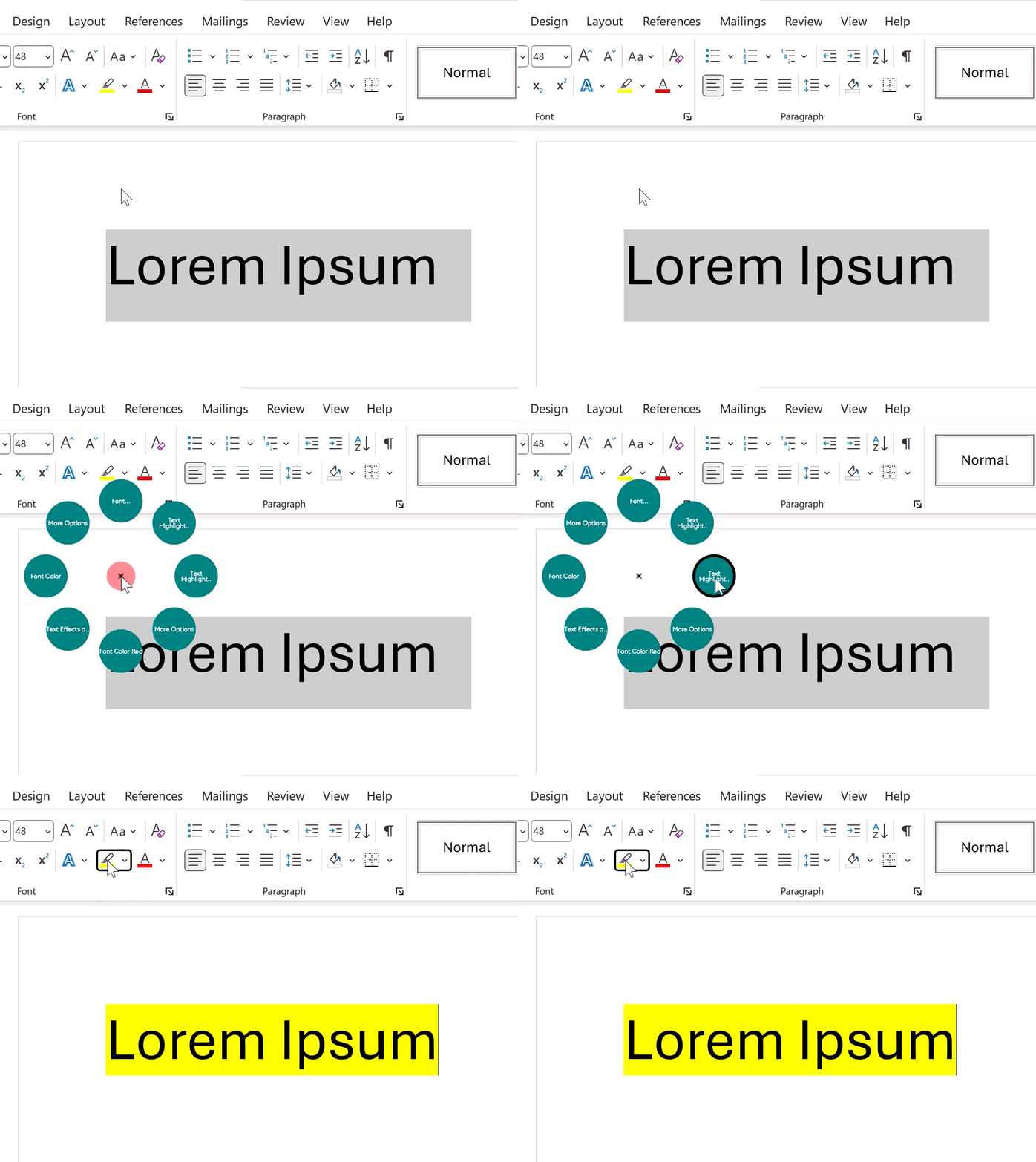
For users who already have a mouse in hand, the Actions Ring adds fast element targeting to the MX Master 4 and other MX devices.
One-tap flow
If discovery was already triggered — via the Ctrl+Alt+Shift+D hotkey (assignable to mouse button), the Dialpad Discover button, or a previous ring tap — the ring is already populated. Open the ring and tap once to invoke. No second discovery needed.
Two-tap flow
Tap 1: Press any Access Ring bubble to discover elements near your cursor. The plugin scans, and all 8 bubbles update with nearby element names.
Tap 2: Open the ring, find the element you want, and tap its bubble to invoke.
Haptic feedback
Feel the result without looking:
- Discovery success: a quick pulse confirms elements were found
- Nothing nearby: a subtle nudge means the area is empty
- Invocation complete: a sharp tap confirms the element was activated
Global hotkey
Ctrl+Alt+Shift+D triggers discovery from anywhere, updating both the Actions Ring and the Creative Console display simultaneously. The hotkey can also be assigned to a mouse button in Logi Options+ for one-click discovery.
What it discovers
Access Ring finds interactive UI elements exposed through Windows UI Automation:
- Buttons
- Checkboxes
- Menu items and dropdown menus
- Tab items
- Radio buttons
- Hyperlinks
- Toggle buttons
- List items
- Split buttons
Up to 8 elements displayed per discovery, sorted by distance from your cursor. Enabled elements are prioritized over disabled ones.
Smart invocation
When you tap an element, Access Ring uses the most reliable method available:
UI Automation patterns first. Direct invocation through the accessibility API. Works even when overlays or other windows are on top. Supports Invoke, Expand/Collapse, Toggle, and Selection patterns.
Coordinate click fallback. If the element does not support automation patterns, Access Ring synthesizes a precise mouse click at the element's screen position.
After invocation, the cursor automatically repositions to the invoked element's center, providing visual feedback without requiring manual repositioning.
Requirements
- Windows 10 or later
- Logi Options+ version 2.1 or later
- One or more supported devices:
- MX Creative Console (Keypad and Dialpad)
- MX devices which support Actions Ring (e.g. MX Master 4)
Setup
- Install Access Ring from the Logi Marketplace
- Open Logi Options+ and assign Access Ring actions to your device:
- MX Creative Console Keypad: Open the Access Ring folder
- MX Creative Console Dialpad: Assign Discover, Cursor Movement, Screen Region Next, and Screen Region Prev to the buttons and dial
- MX Master 4: Assign Access Ring 1 through Access Ring 8 to the eight Actions Ring bubbles
- Position your cursor near any toolbar or UI element and tap Discover
Status
Coming soon to Logi Marketplace.
Known limitations:
- Access Ring works with applications that support the Windows UI Automation accessibility API. Applications built using GPU-based UI frameworks like GPUI do not currently offer accessibility support. Accessibility support for apps built using Electron and Flutter frameworks may vary.
- Applications with collapsible toolbars (e.g., auto-hidden ribbons) may close their UI when the Actions Ring overlay opens. Persistent UI elements like pinned ribbons, floating toolbars, and standard dialogs work reliably. This limitation can be addressed by enabling the "always show" setting for the toolbar in the respective application (e.g., "Always Show Ribbon" in Microsoft Office). This does not affect the Creative Console, which has no overlay.
- Discovery speed depends on the target application's accessibility tree complexity. Most applications return results in under a second.
- Rarely, the target application's accessibility layer may stop responding (observed occasionally with Microsoft Word). When this happens, the LCD Keypad shows "Scanning…" for about 5 seconds and then goes back to "Discover" without finding anything. Pressing Discover again during the next 15 seconds or so produces the same result. After that, discovery starts working again on its own. This is a Windows accessibility limitation that the plugin cannot work around.
- Windows only. macOS support coming soon.
Open-source libraries used:
- FlaUI - UI Automation library for element discovery and invocation (MIT License)